Docker Project for DevOps Engineers.

Nikhil Patil
👨💻 I love Linux & DevOps! 💻
🐧 Linux👨💻 | DevOps & Cloud Enthusiast | 🌍 Azure Admin | 🛠️ Ansible | 📂 Git | 🐳 Docker | 🔑 OpenLDAP | 🖥️ System Admin | | 🚀 Jenkins 🛠️
🏠 Pune
🌟 I'm really into using and managing computers with Linux. I also like making things work smoothly and quickly.
📖 I work with Microsoft Azure, use tools like Ansible and Git to automate tasks, and make software run in containers with Docker.
🔒 I handle access and security using OpenLDAP, and I'm all about keeping systems running smoothly.
🌐 Exploring opportunities in cloud and DevOps.
📧 Get in touch: nikrpatil1997@gmail.com
📌 Dockerfile
Docker is a tool that makes it easy to run applications in containers. Containers are like small packages that hold everything an application needs to run. To create these containers, developers use something called a Dockerfile.
A Dockerfile is like a set of instructions for making a container. It tells Docker what base image to use, what commands to run, and what files to include. For example, if you were making a container for a website, the Dockerfile might tell Docker to use an official web server image, copy the files for your website into the container, and start the web server when the container starts.
📌 Task -1 Create a Dockerfile for a simple web application (e.g. a Node.js or Python app)
====================== app.py (app) =============================
#!/usr/bin/python3

from flask import Flask
app = Flask(__name__)

@app.route('/')
def hello_world():
    return 'Hey, welcome to Docker Projects'

if __name__ == '__main__':
    app.run(host='0.0.0.0', port=5000)

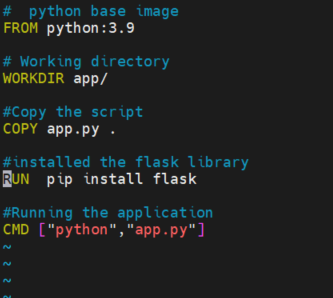
==================== Dockerfile ===============================
# Python base image
FROM python:3.9

# Working directory
WORKDIR app/

# Copy the python script
COPY app.py .

# installed libraries
RUN  pip install flask

# Run the application
CMD ["python","app.py"]
📌 Task -2 Build the image using the Dockerfile and run the container
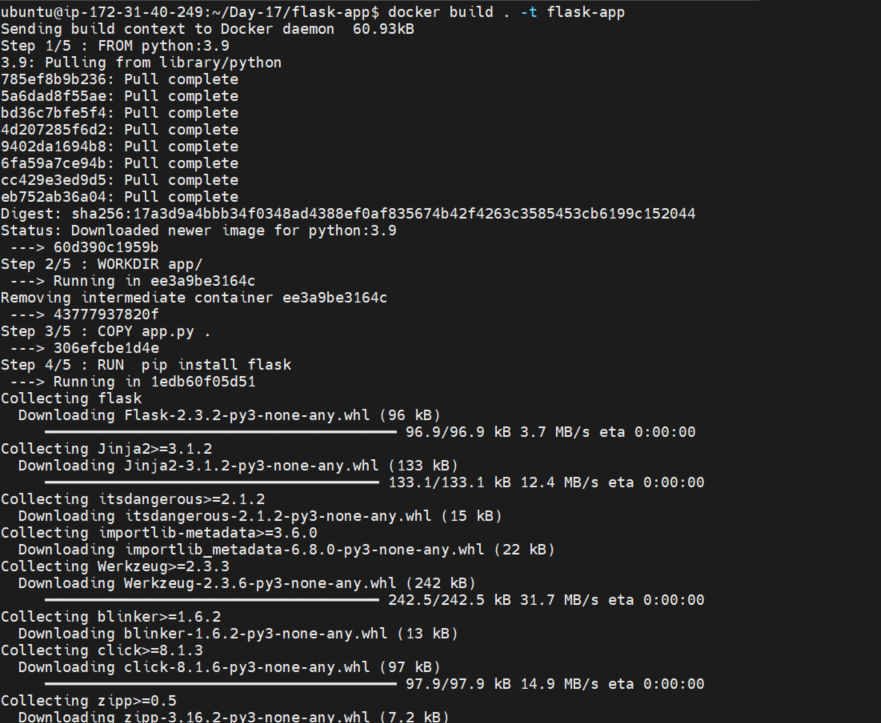
docker build . -t flask-app
# To run the container
docker run -d -p 5000:5000 flask-app:latest

-d = Run container in background and print container ID
-p = Expose a port

# To check the containers
docker ps -a

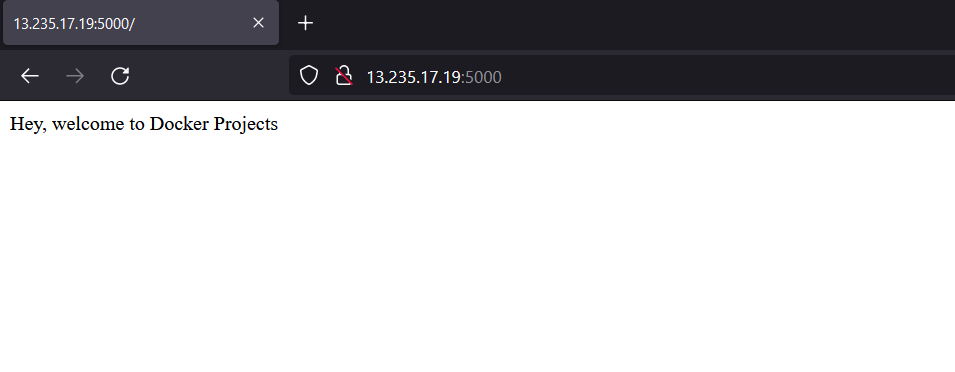
📌 Task -3 Verify that the application is working as expected by accessing it in a web browser
Open in browser - http://Public_ip_address:5000/
📌 Task -4 Push the image to a public or private repository (e.g. Docker Hub )
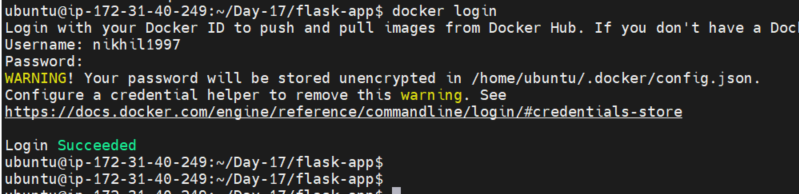
# Login to dockerhub account

  docker login
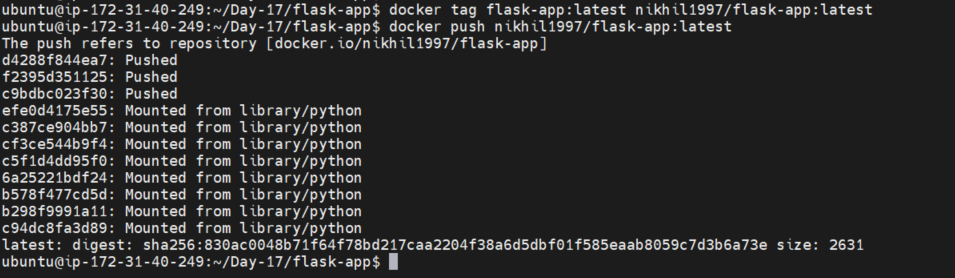
# tag the docker image and push to docker hub

docker tag flask-app:latest nikhil1997/flask-app:latest
docker push nikhil1997/flask-app:latest
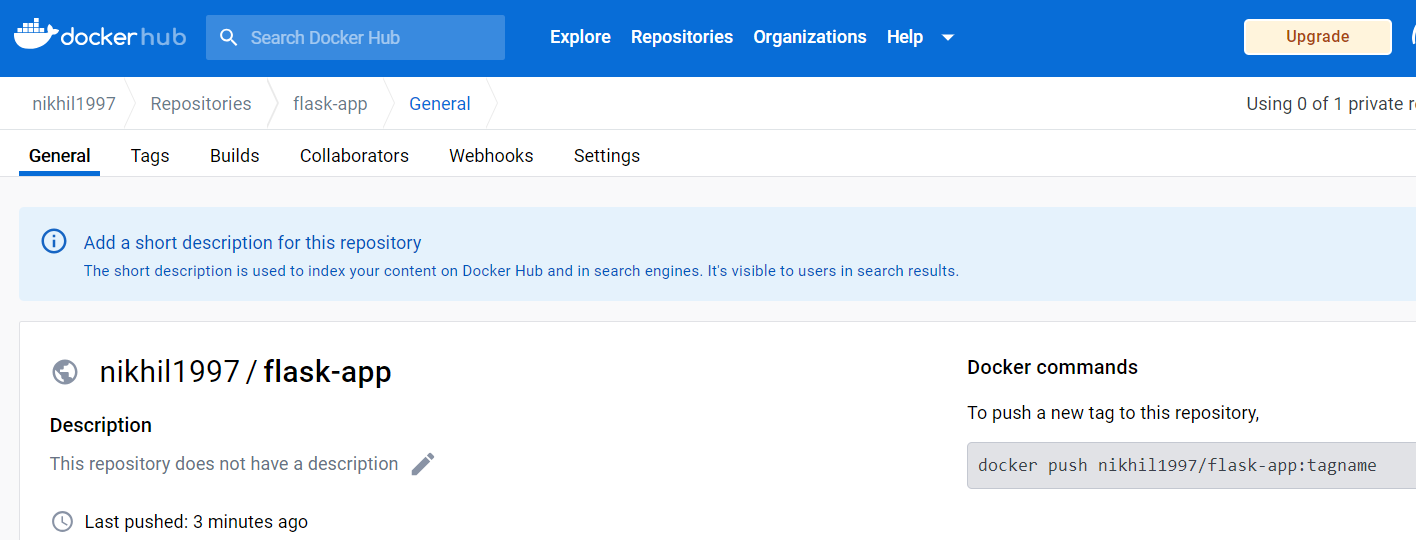
# Verify on docker hub