Nikhil Patil
👨💻 I love Linux & DevOps! 💻
🐧 Linux👨💻 | DevOps & Cloud Enthusiast | 🌍 Azure Admin | 🛠️ Ansible | 📂 Git | 🐳 Docker | 🔑 OpenLDAP | 🖥️ System Admin | | 🚀 Jenkins 🛠️
🏠 Pune
🌟 I'm really into using and managing computers with Linux. I also like making things work smoothly and quickly.
📖 I work with Microsoft Azure, use tools like Ansible and Git to automate tasks, and make software run in containers with Docker.
🔒 I handle access and security using OpenLDAP, and I'm all about keeping systems running smoothly.
🌐 Exploring opportunities in cloud and DevOps.
📧 Get in touch: nikrpatil1997@gmail.com
📌 Introduction
Till now you have learned how to create docker-compose.yml file and pushed it to the Repository. Let's move forward and dig more on other Docker-compose.yml concepts. Aaj thodi padhai krte hai on Docker Volume & Docker Network 😃
📌 Docker-Volume
Docker allows you to create something called volumes. Volumes are like separate storage areas that can be accessed by containers. They allow you to store data, like a database, outside the container, so it doesn't get deleted when the container is deleted. You can also mount from the same volume and create more containers having the same data.
📌 Docker Network
Docker allows you to create virtual spaces called networks, where you can connect multiple containers (small packages that hold all the necessary files for a specific application to run) together. This way, the containers can communicate with each other and with the host machine (the computer on which the Docker is installed). When we run a container, it has its own storage space that is only accessible by that specific container. If we want to share that storage space with other containers, we can't do that.
📌 Task -1 Create a multi-container docker-compose file which will bring UP and bring DOWN containers in a single shot ( Example - Create application and database container )
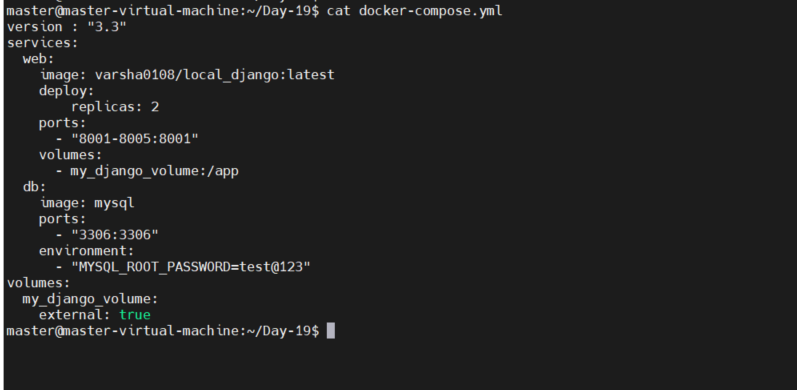
###################  docker-compose file ###########################
version : "3.3"
services:
  web:
    image: varsha0108/local_django:latest
    deploy:
        replicas: 2
    ports:
      - "8001-8005:8001"
    volumes:
      - my_django_volume:/app
  db:
    image: mysql
    ports:
      - "3306:3306"
    environment:
      - "MYSQL_ROOT_PASSWORD=test@123"
volumes:
  my_django_volume:
    external: true
## We need volume name my_django_volume
## Create docker volume

docker volume create --name=my_django_volume

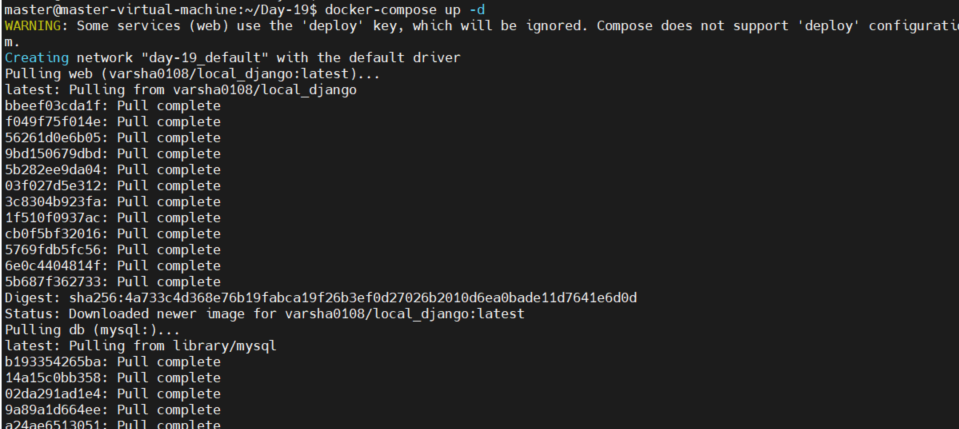
## Created container with docker-compose file

docker-compose up  -d
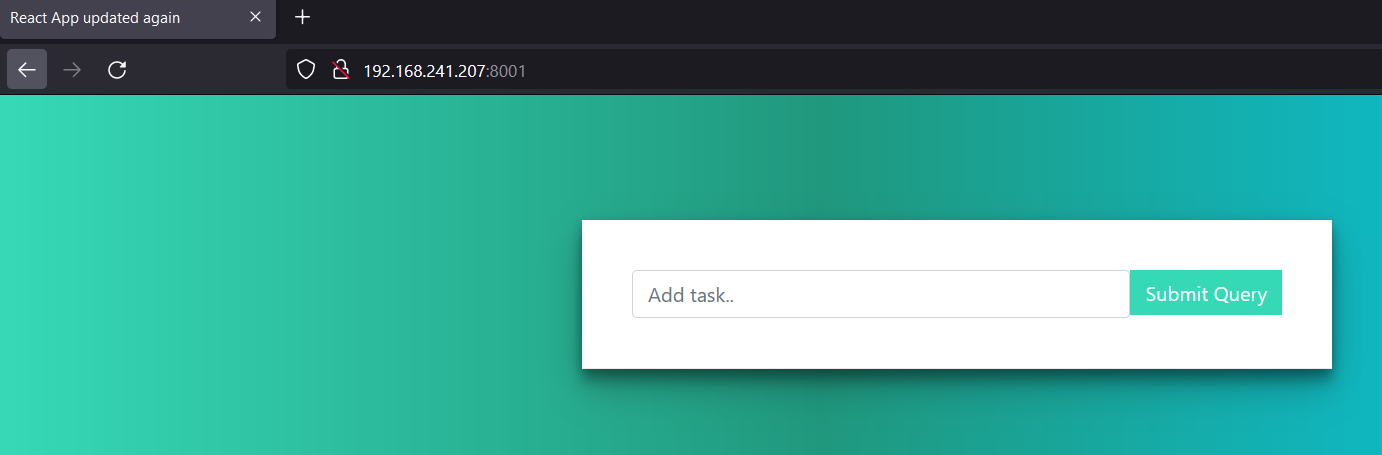
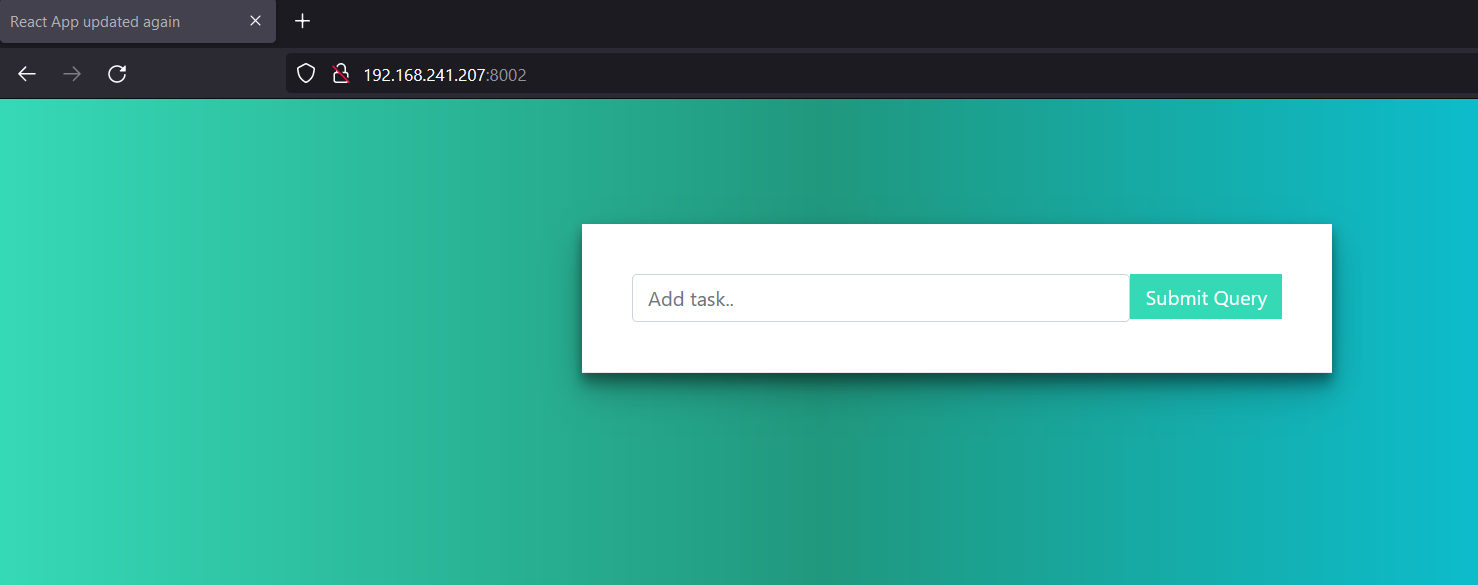
## To check the containers and verified in browser

docker-compose ps

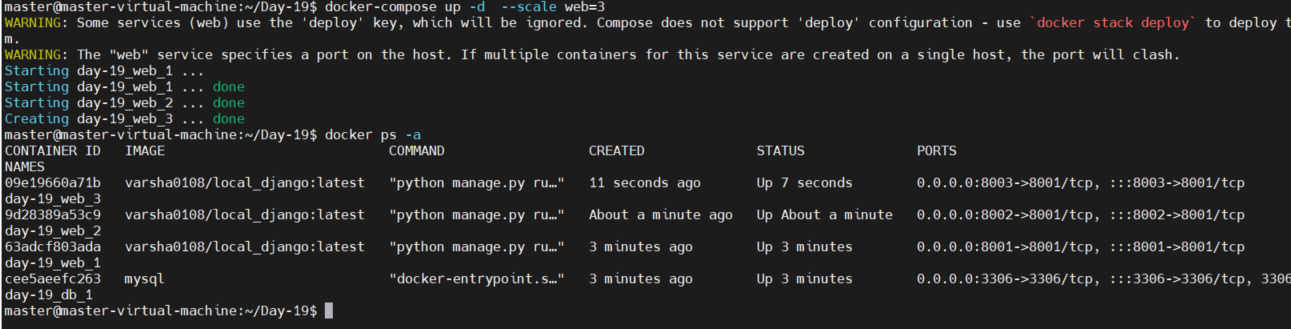
## scale the containers with docker-compose

docker-compose up -d --scale web=3
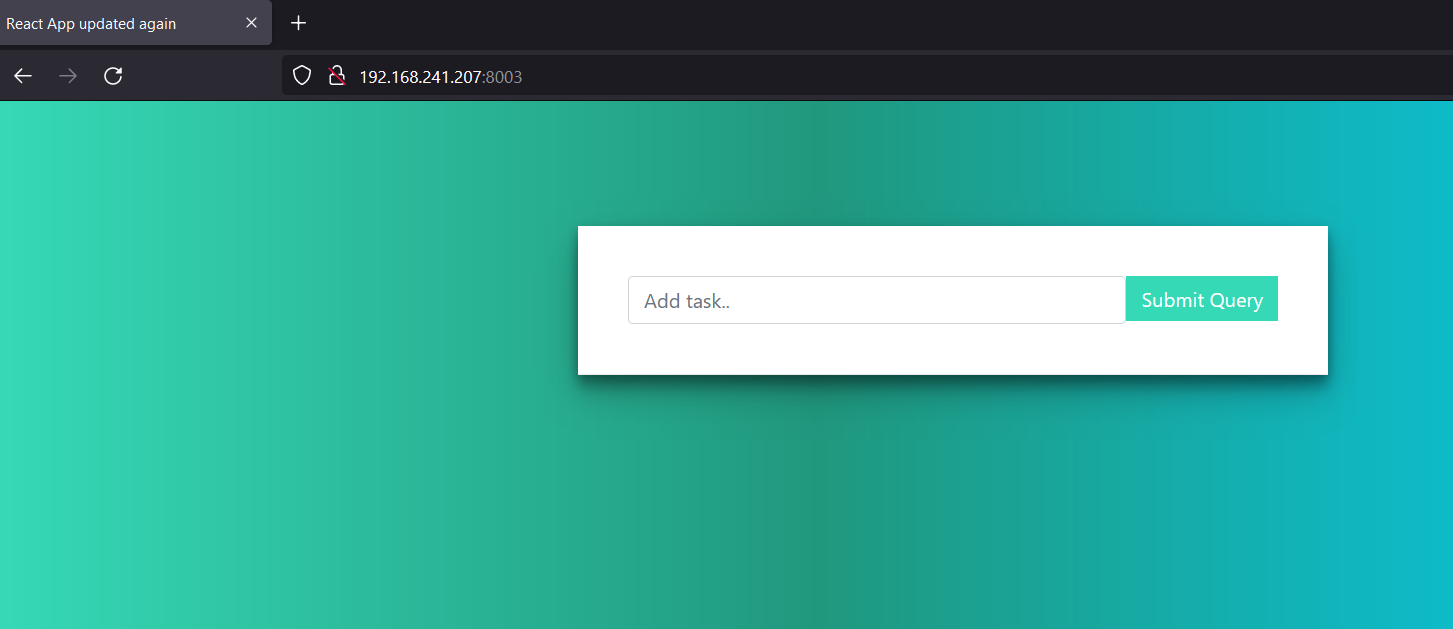
# Verified in browser
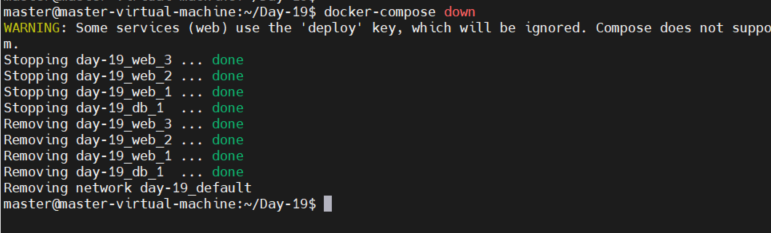
docker-compose down
📌 Task -2 Learn how to use Docker Volumes and Named Volumes to share files and directories between multiple containers. Create two or more containers that read and write data to the same volume using the docker run --mount command.
Learn how to use Docker Volumes and Named Volumes to share files and
directories between multiple containers.
docker volume create  --name=my_volume --opt type=none  --opt device=/home/master/Day-19/my_volume --opt o=bind
# --opt type=none = custom volume type
# --opt device=  path of the folder on host system which used as volume
# --opt o=bind=  bind the mount volume to the container

docker volume ls                ## to see the volume
docker inspect <volume name>    ## to see more information about volume
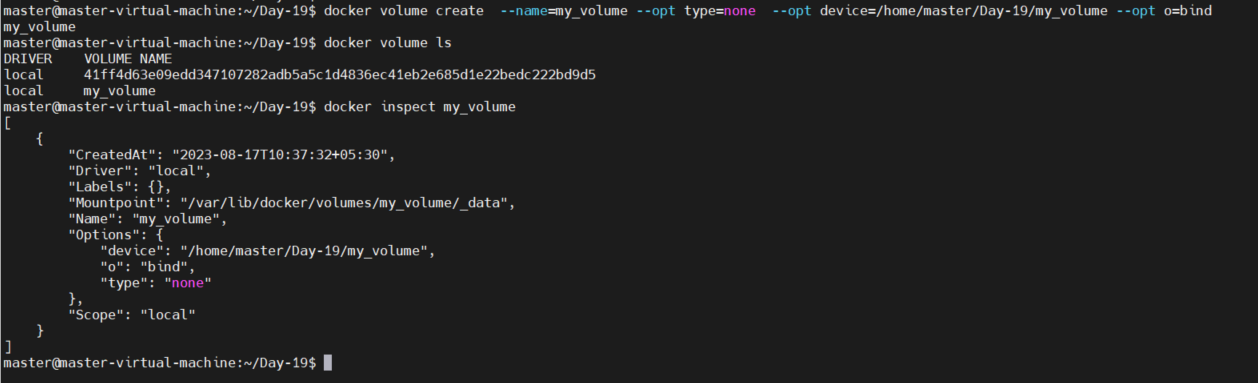
## Create two or more containers that read and write data to
    the same volume using the docker run --mount command.


##Verify that the data is the same in all containers by using the docker exec command
 to run commands inside each container.

##created file1.txt in volume on host machine

Verifying in container file exist or not


 Use the docker volume ls command to list all volumes and docker volume rm command to remove the volume
 when you're done.

docker volume ls
docker volume rm <volume name>




