Docker for DevOps Engineers

Nikhil Patil
👨💻 I love Linux & DevOps! 💻
🐧 Linux👨💻 | DevOps & Cloud Enthusiast | 🌍 Azure Admin | 🛠️ Ansible | 📂 Git | 🐳 Docker | 🔑 OpenLDAP | 🖥️ System Admin | | 🚀 Jenkins 🛠️
🏠 Pune
🌟 I'm really into using and managing computers with Linux. I also like making things work smoothly and quickly.
📖 I work with Microsoft Azure, use tools like Ansible and Git to automate tasks, and make software run in containers with Docker.
🔒 I handle access and security using OpenLDAP, and I'm all about keeping systems running smoothly.
🌐 Exploring opportunities in cloud and DevOps.
📧 Get in touch: nikrpatil1997@gmail.com
📌 Docker Compose
Docker Compose is a tool that was developed to help define and share multi-container applications.
With Compose, we can create a YAML file to define the services and with a single command, can spin everything up or tear it all down.
📌 What is YAML?
YAML is a data serialization language that is often used for writing configuration files. Depending on whom you ask, YAML stands for yet another markup language or YAML ain’t markup language (a recursive acronym), which emphasizes that YAML is for data, not documents.
YAML is a popular programming language because it is human-readable and easy to understand.
YAML files use a .yml or .yaml extension.
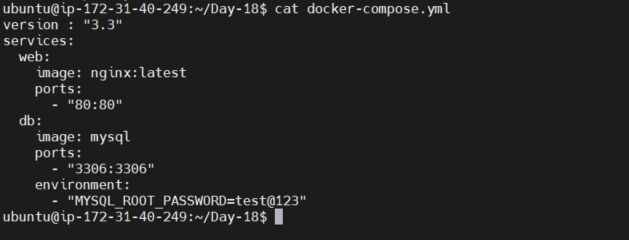
📌 Task-1 Learn how to use the docker-compose.yml file, to set up the environment, configure the services and links between different containers, and also to use environment variables in the docker-compose.yml file.
==================== docker-compose.yml ==============================
version : "3.3"
services:
  web:
    image: nginx:latest
    ports:
      - "80:80"
  db:
    image: mysql
    ports:
      - "3306:3306"
    environment:
      - "MYSQL_ROOT_PASSWORD=test@123"
==================================================================
version - docker-compose version specified
services - services that we want to create
image - image for container
port - port number for service
environment - environment variables of container
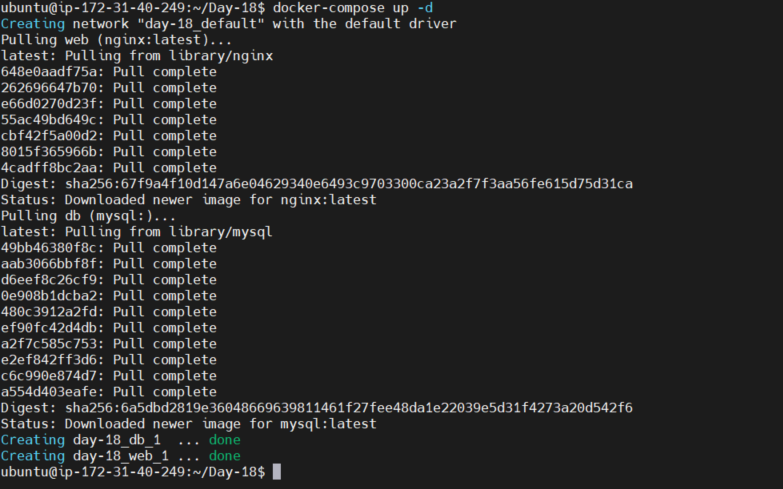
## Run docker-compose

docker-compose up -d
## To check the containers

docker-compose ps -a

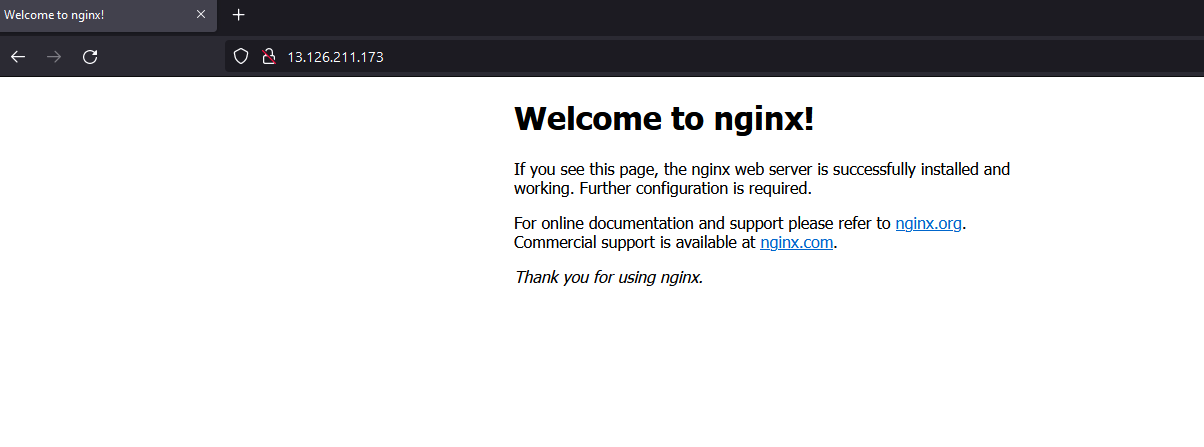
## Verify the nginx service in browser - http://13.126.211.173:80
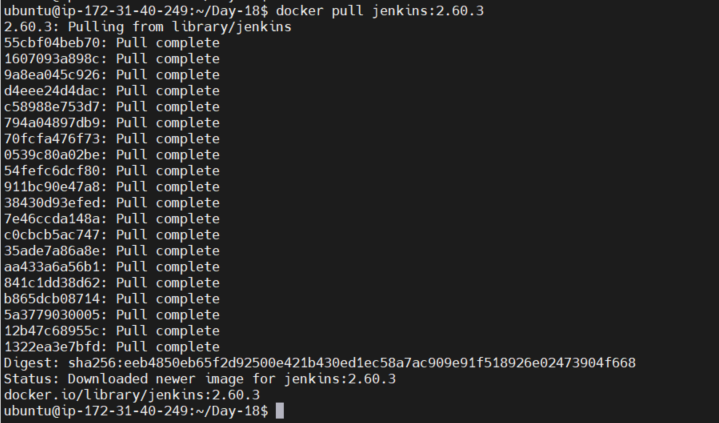
📌 Task -2 Pull a pre-existing Docker image from a public repository (e.g. Docker Hub) and run it on your local machine.
## Pulled jenkins docker image from dockerhub
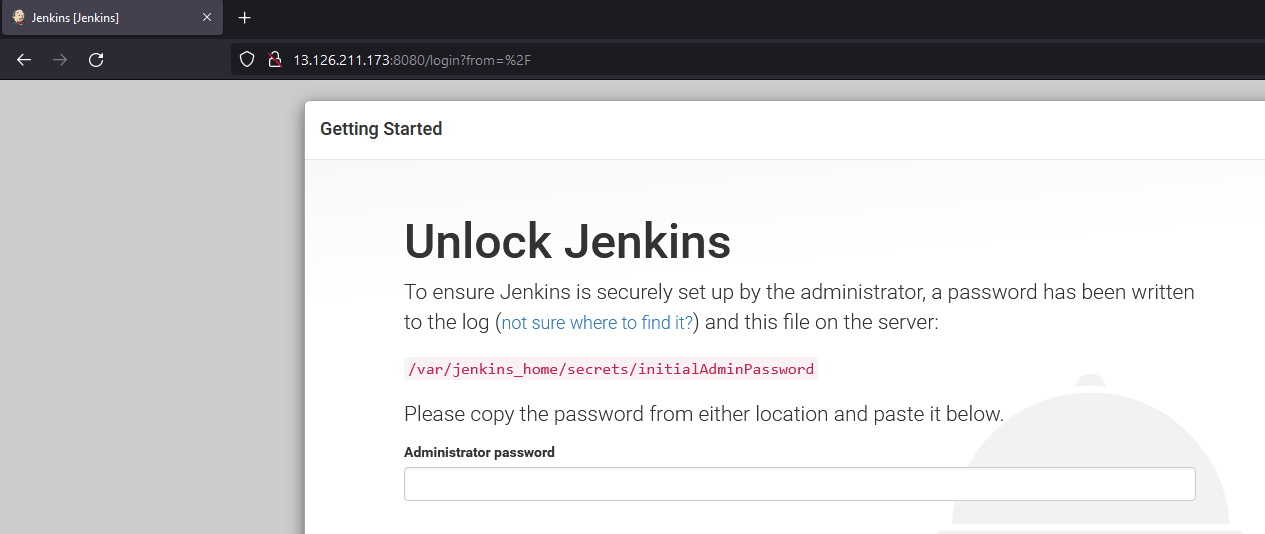
## Run the container and verify jenkins dashboard in browser

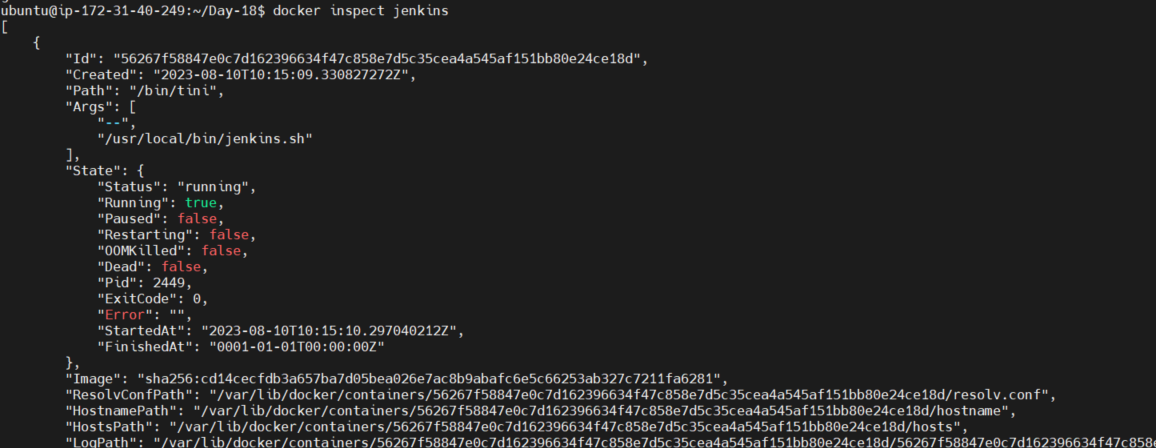
## Inspect the container's running processes and exposed ports using
the docker inspect command.

docker inspect <container_name>
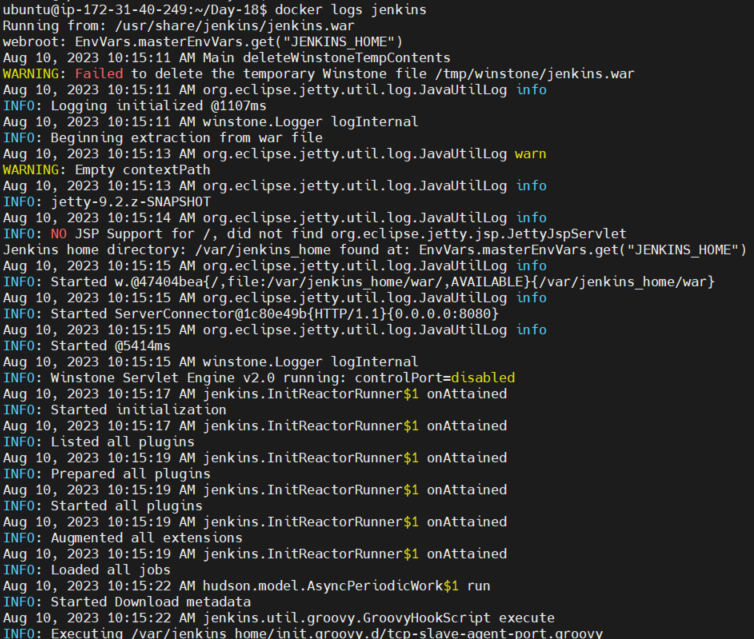
## Use the docker logs command to view the container's log output.

docker logs <container_name>
## Use the docker stop and docker start commands to stop and start the container.

docker stop <container_name>
docker start <container_name>

## Use the docker rm command to remove the container when you're done.

docker rm <container_name>



