Nikhil Patil
👨💻 I love Linux & DevOps! 💻
🐧 Linux👨💻 | DevOps & Cloud Enthusiast | 🌍 Azure Admin | 🛠️ Ansible | 📂 Git | 🐳 Docker | 🔑 OpenLDAP | 🖥️ System Admin | | 🚀 Jenkins 🛠️
🏠 Pune
🌟 I'm really into using and managing computers with Linux. I also like making things work smoothly and quickly.
📖 I work with Microsoft Azure, use tools like Ansible and Git to automate tasks, and make software run in containers with Docker.
🔒 I handle access and security using OpenLDAP, and I'm all about keeping systems running smoothly.
🌐 Exploring opportunities in cloud and DevOps.
📧 Get in touch: nikrpatil1997@gmail.com
📌 Jenkins Master (Server)
Jenkins’s server or master node holds all key configurations. The Jenkins master server is like a control server that orchestrates all the workflow defined in the pipelines. For example, scheduling a job, monitoring the jobs, etc.
📌 Jenkins Agent
An agent is typically a machine or container that connects to a Jenkins master and this agent actually executes all the steps mentioned in a Job. When you create a Jenkins job, you have to assign an agent to it. Every agent has a label as a unique identifier.
When you trigger a Jenkins job from the master, the actual execution happens on the agent node that is configured in the job.
A single, monolithic Jenkins installation can work great for a small team with a relatively small number of projects. As your needs grow, however, it often becomes necessary to scale up. Jenkins provides a way to do this called “master to agent connection.” Instead of serving the Jenkins UI and running build jobs all on a single system, you can provide Jenkins with agents to handle the execution of jobs while the master serves the Jenkins UI and acts as a control node.
An agent is typically a machine or container that connects to a Jenkins master and this agent actually executes all the steps mentioned in a Job. When you create a Jenkins job, you have to assign an agent to it. Every agent has a label as a unique identifier.
When you trigger a Jenkins job from the master, the actual execution happens on the agent node that is configured in the job.
A single, monolithic Jenkins installation can work great for a small team with a relatively small number of projects. As your needs grow, however, it often becomes necessary to scale up. Jenkins provides a way to do this called “master to agent connection.” Instead of serving the Jenkins UI and running build jobs all on a single system, you can provide Jenkins with agents to handle the execution of jobs while the master serves the Jenkins UI and acts as a control node.

📌 Pre-requisites
Let’s say we’re starting with a fresh Ubuntu 22.04 Linux installation. To get an agent working make sure you install Java ( same version as Jenkins master server ) and Docker on it.
📌 Task-01 Setting up Jenkins agent
Create an agent by setting up a node on Jenkins
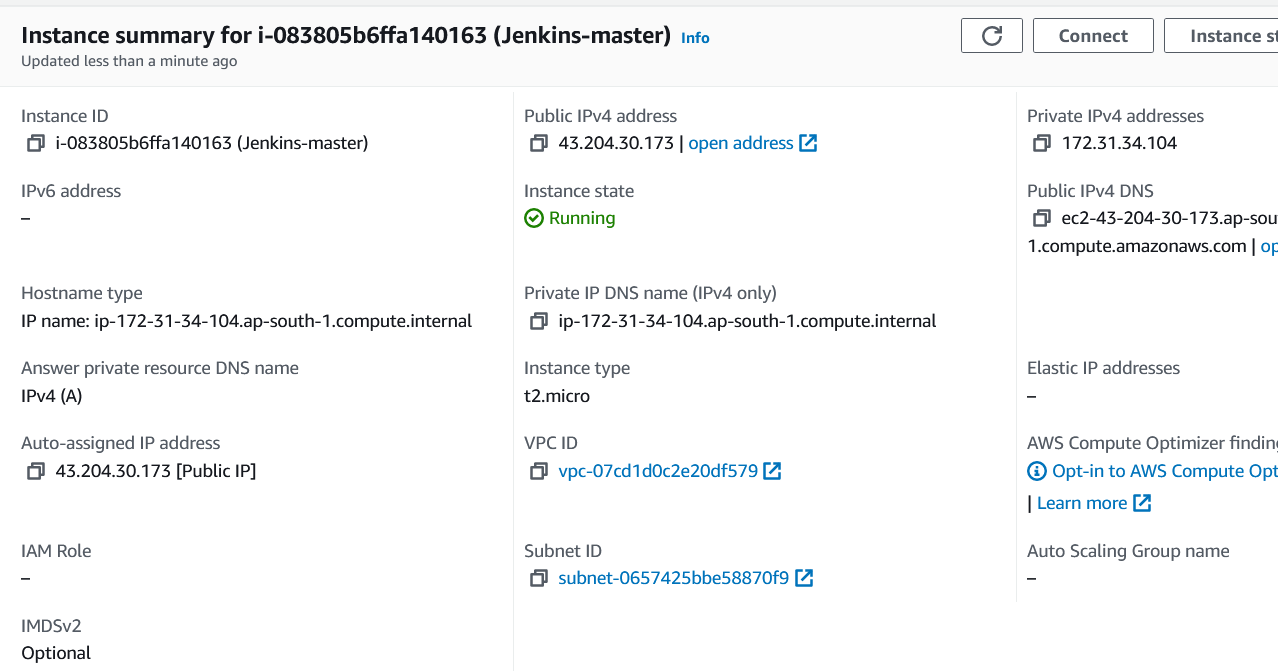
Create an AWS EC2 instance of the agent node. Create a new AWS EC2 Instance and connect it to the master(Where Jenkins is installed)
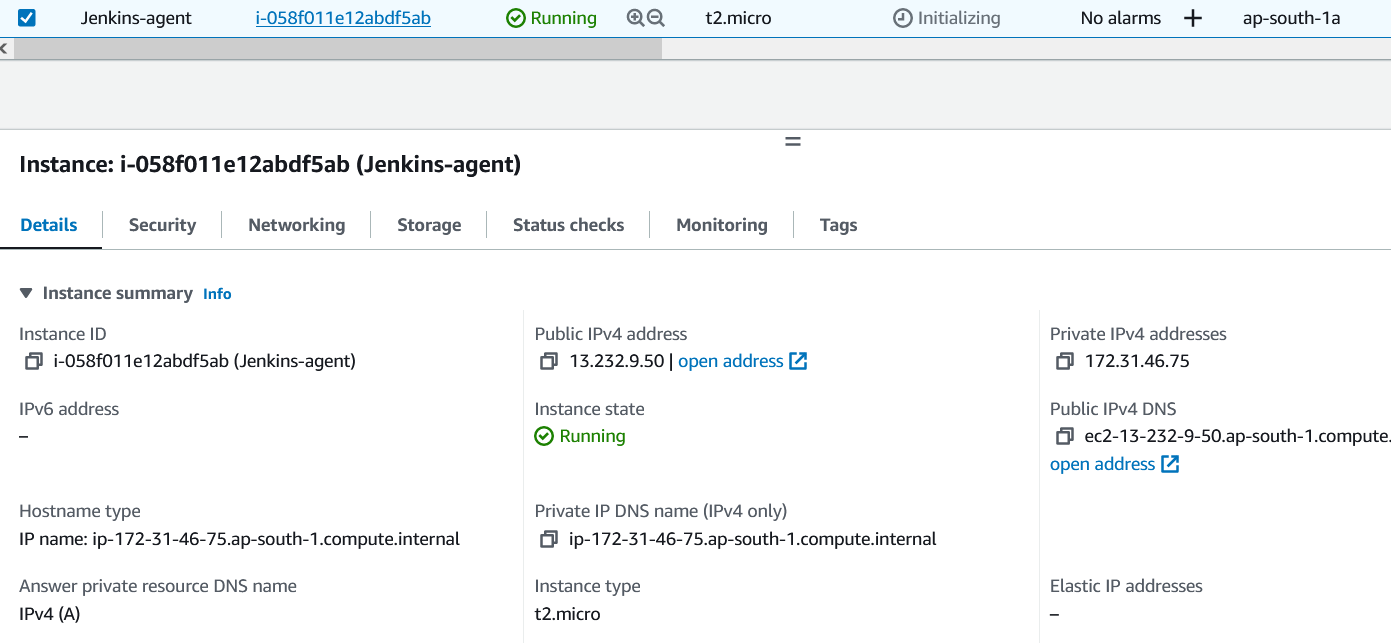
Installed Java on agent node confirm Jenkins master and agent node have same Java --version
sudo apt update

sudo apt install docker.io docker-compose

sudo apt  install openjdk-11-jre

usermod -aG docker $USER

The connection of the master and agent requires SSH and the public-private key pair exchange.
Create the SSH key pair on the Jenkins master node
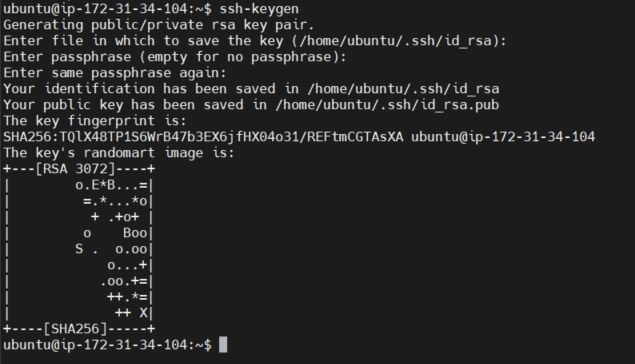
Then go to the .ssh folder and cat id_rsa.pub key and copy this key

Add this key to the Jenkins agent server in .ssh/authorized_keys

Then go to the Jenkins dashboard in that go to manage Jenkins/Nodes and click on Create the new node.
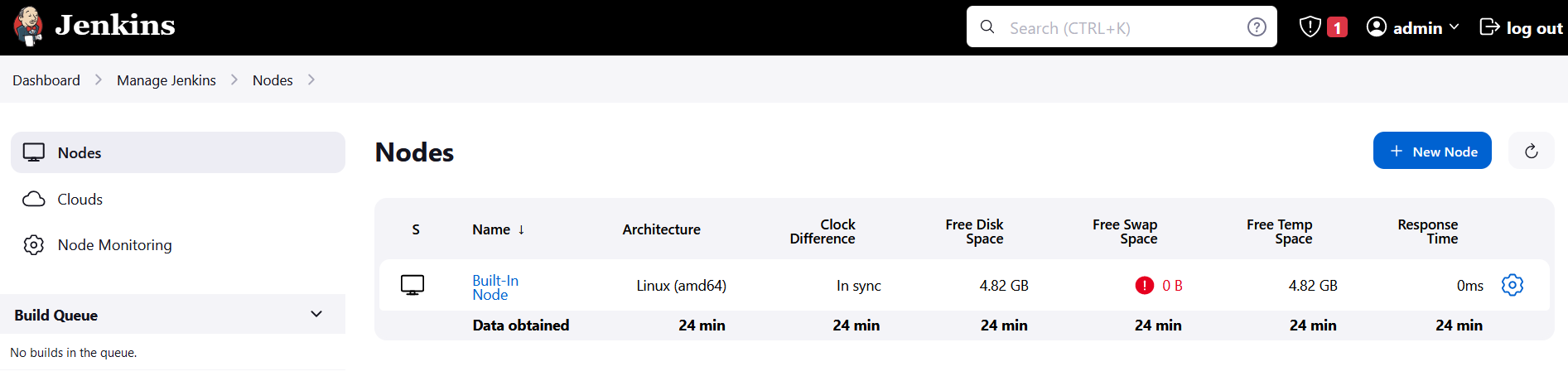
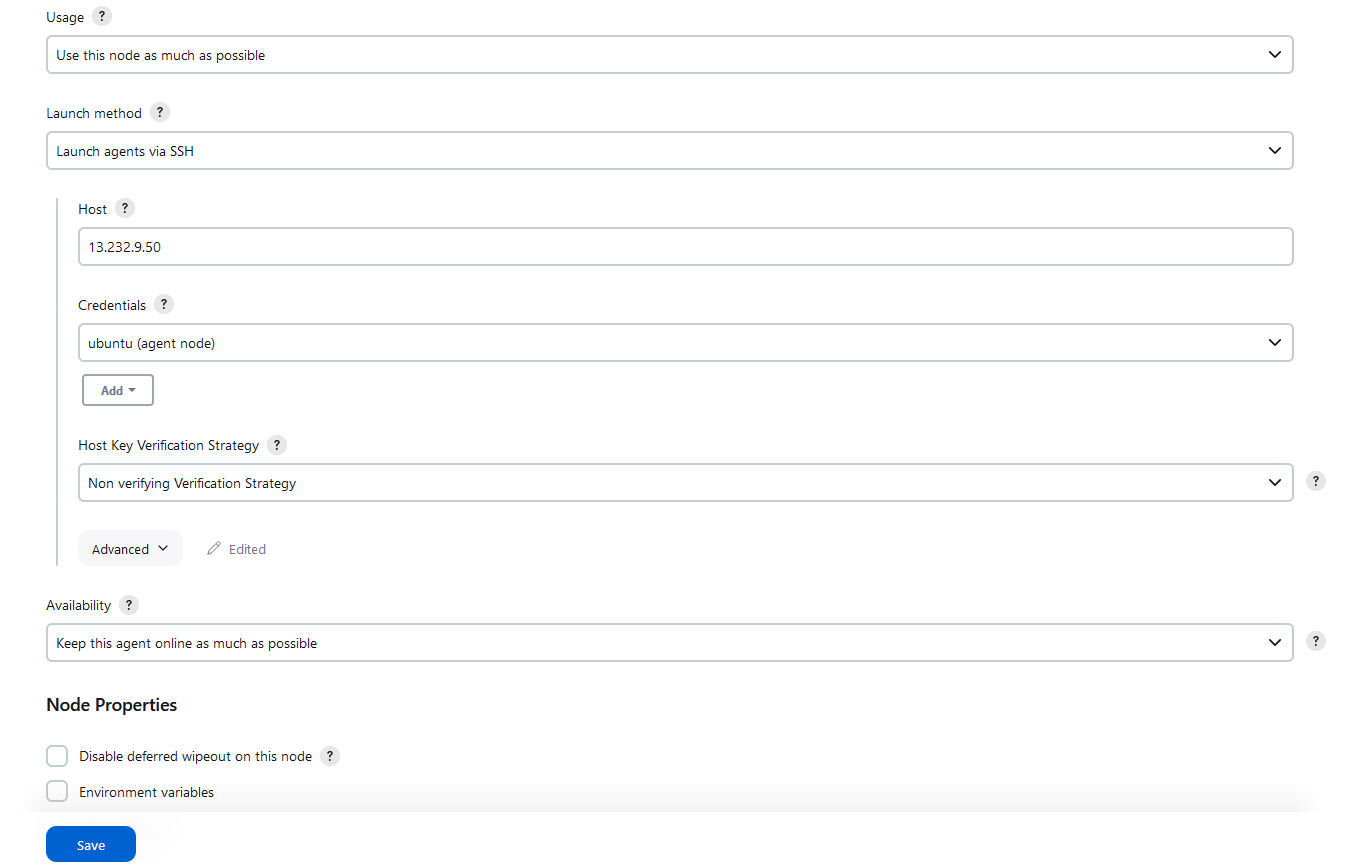
Add the new agent
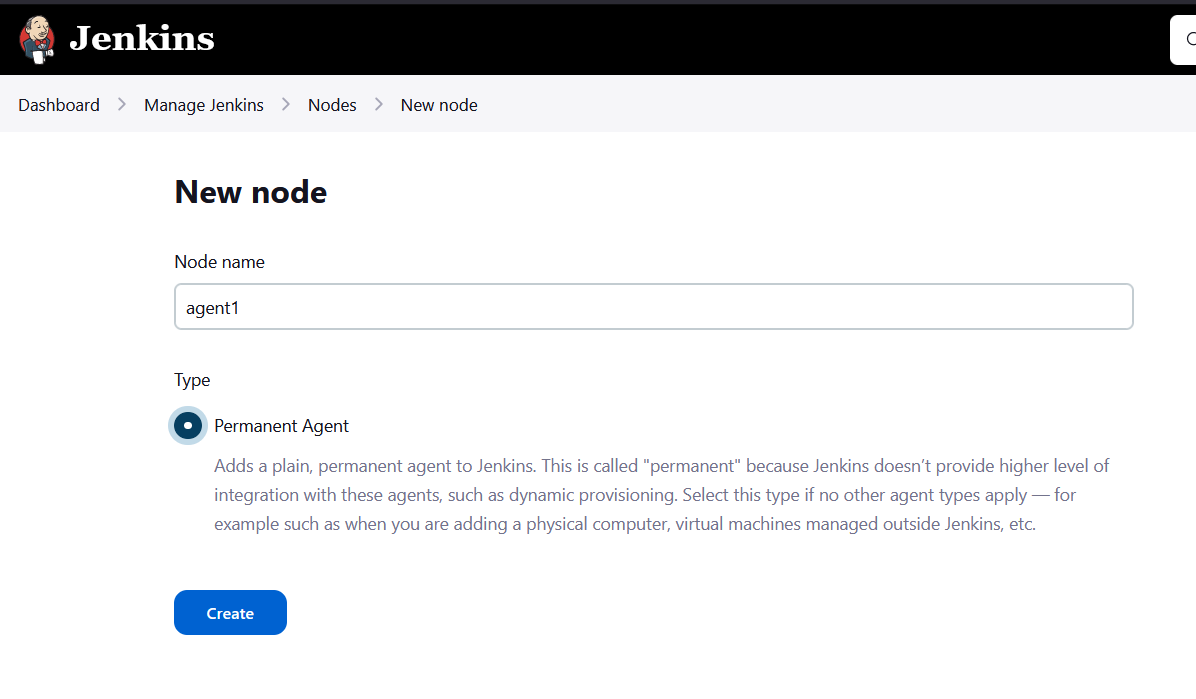
Add the below details
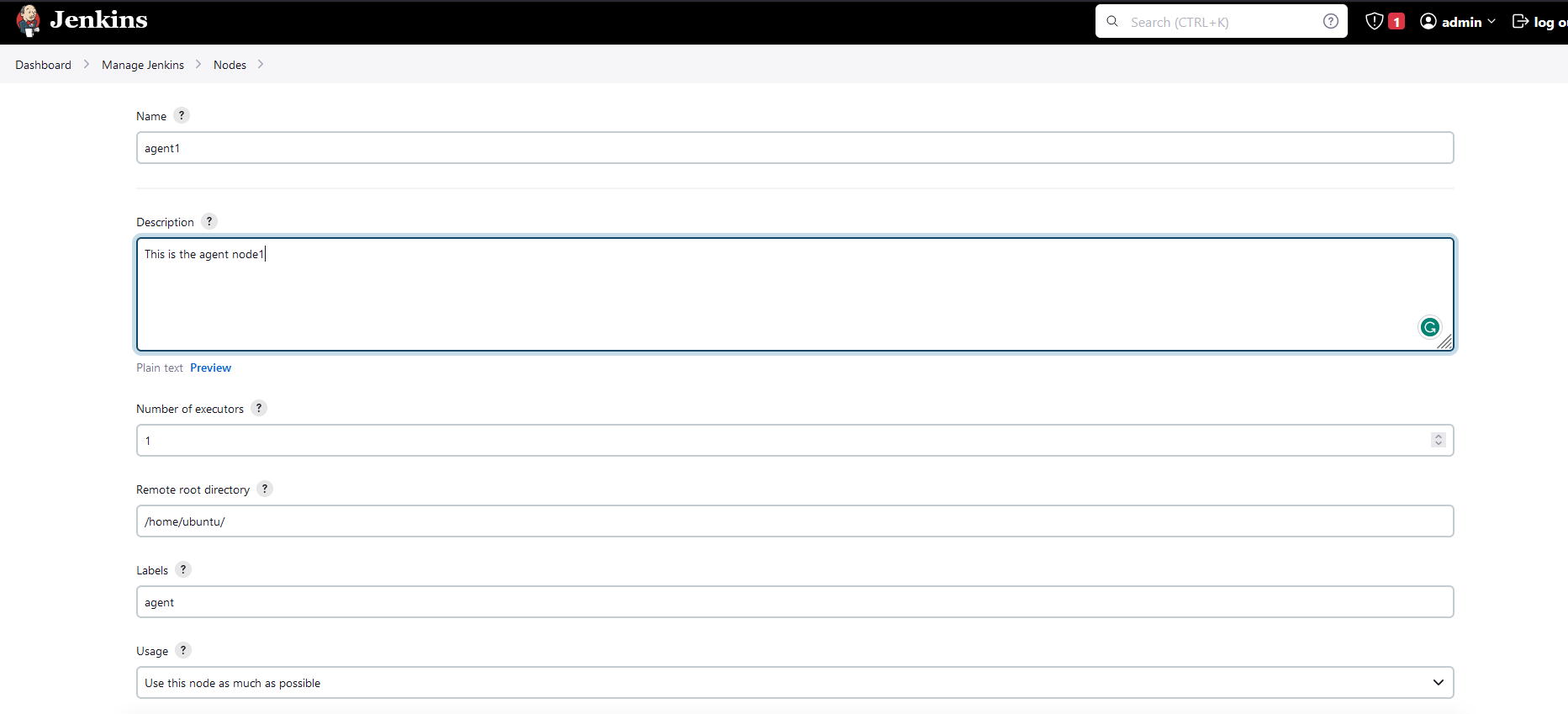
Add the public IP in the host and create credentials
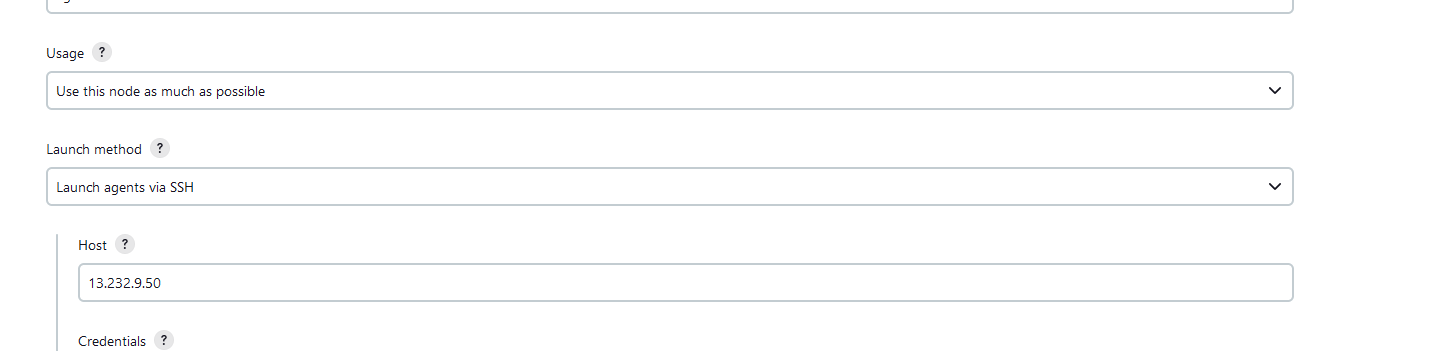
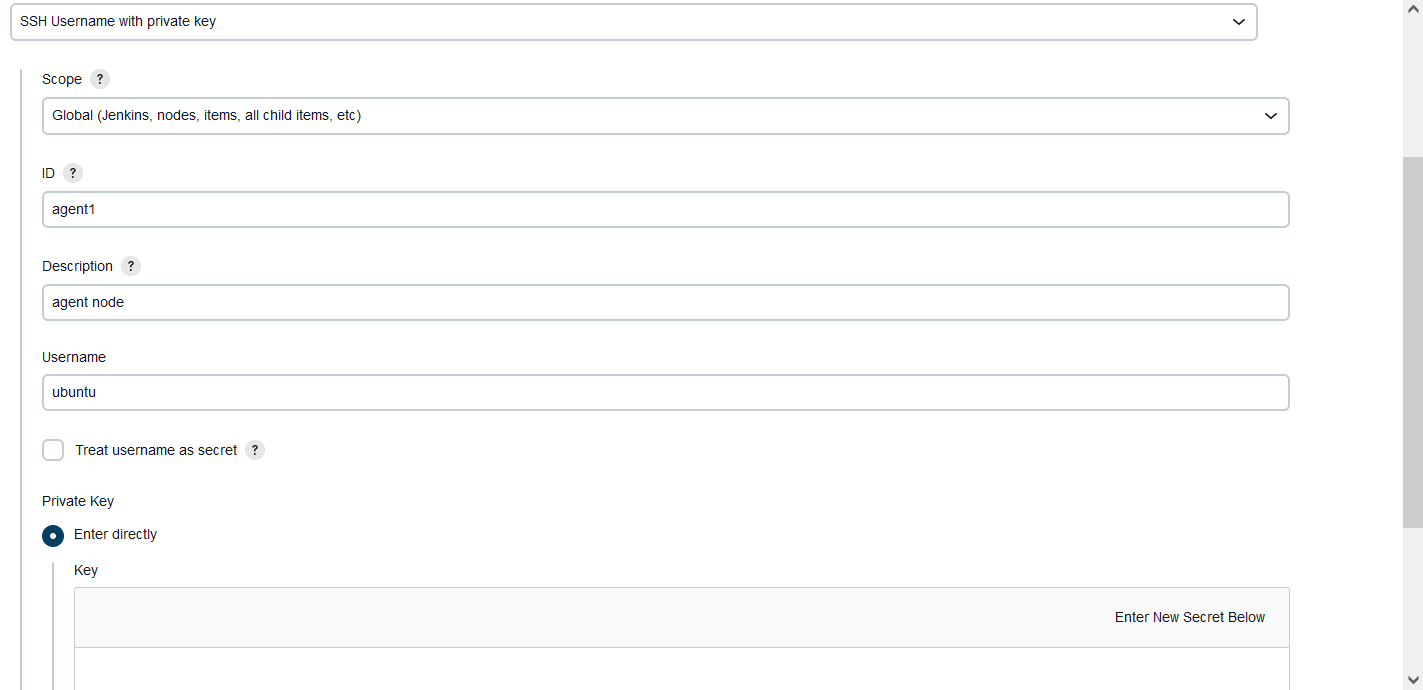
Create the credentials
cat the id_rsa in Jenkins -master and copy this key
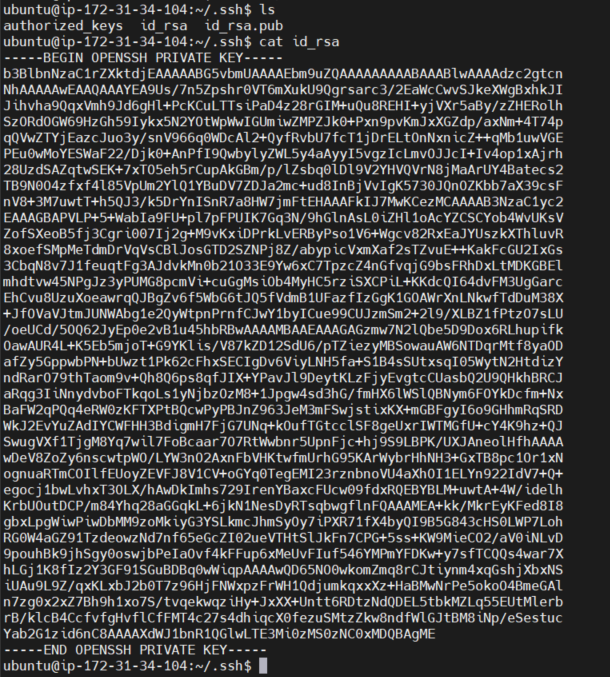
Add this key private key section in the credentials
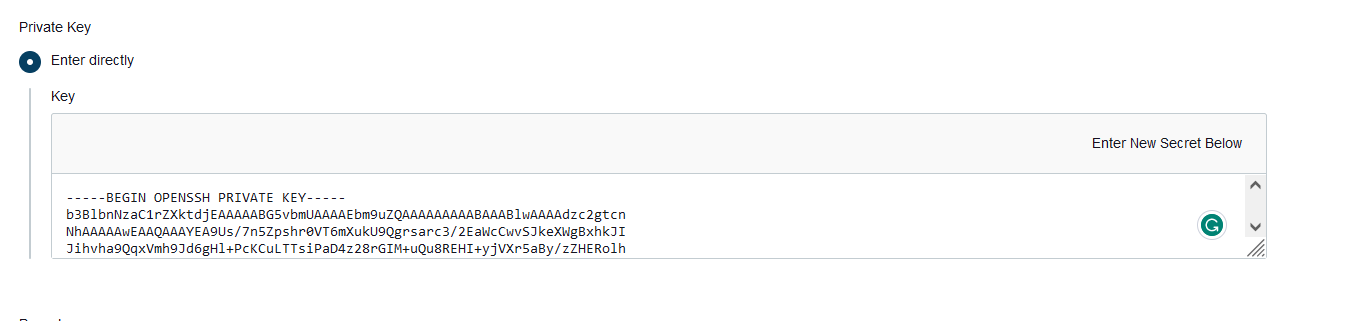
Save the changes
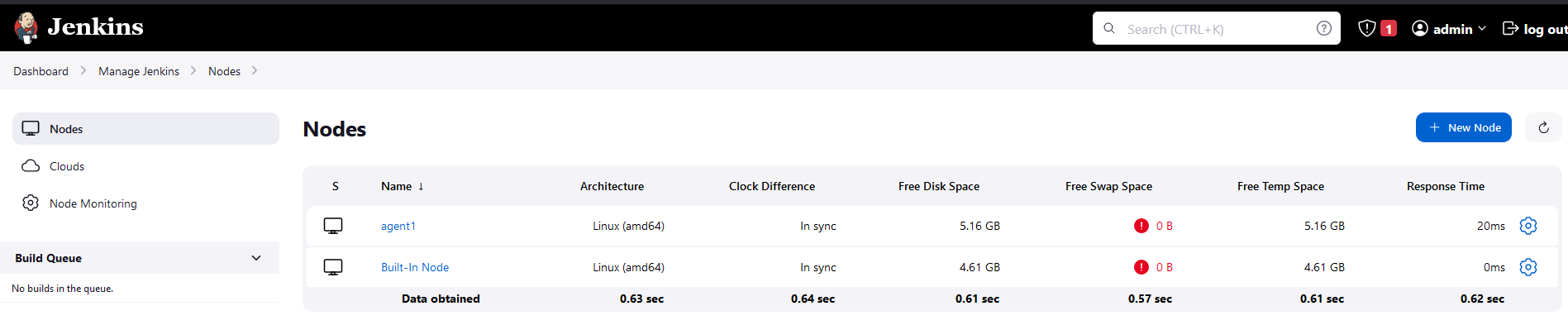
Successfully connect agent node to Jenkins master
📌 Task-02 Run Jenkins job on the agent node
Run your previous Jobs (which were built on Day 26, and Day 27) on the new agent
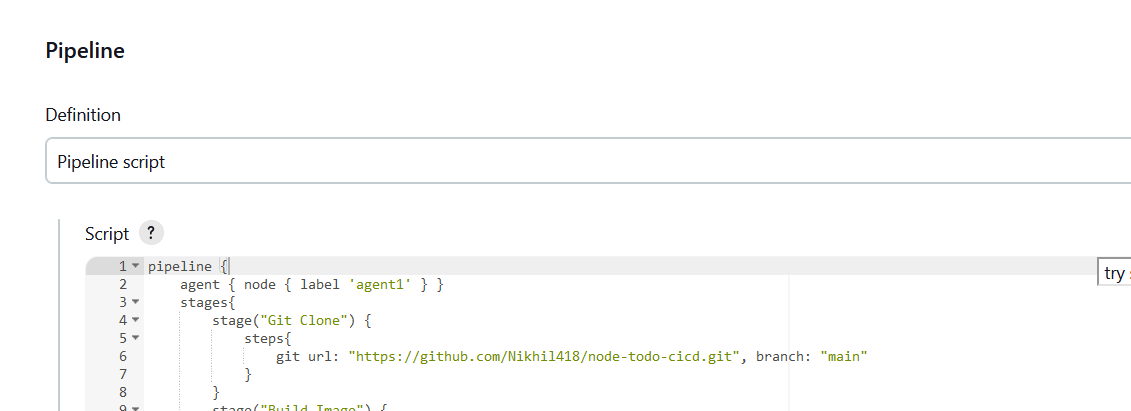
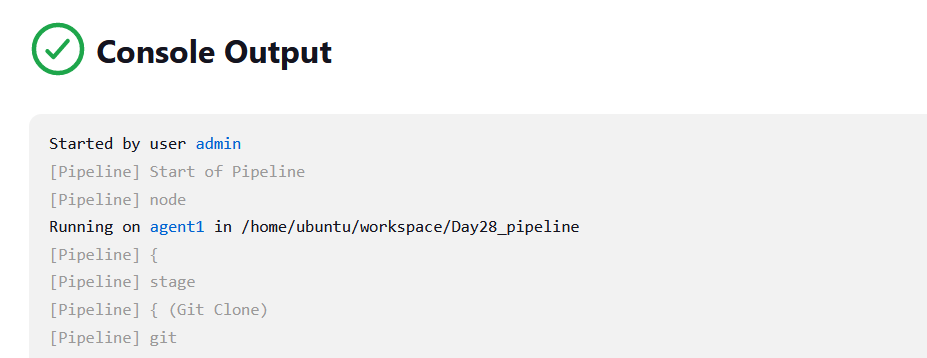
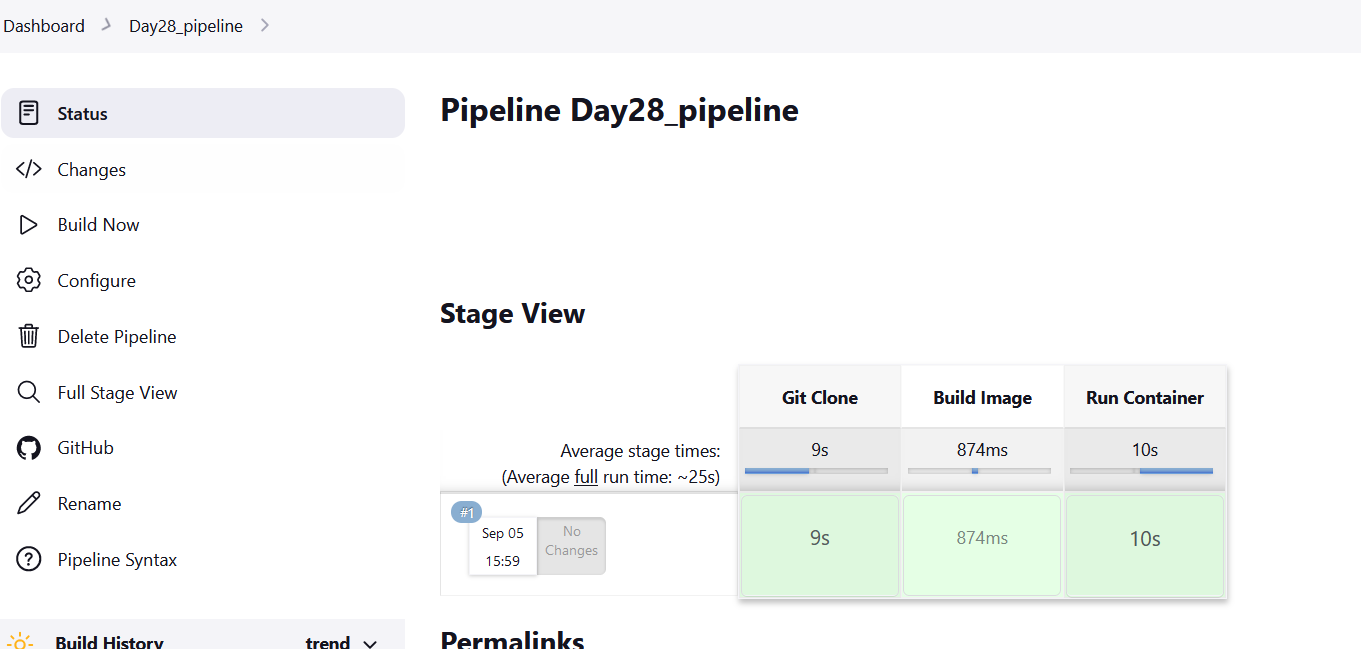
Successfully build the pipeline